Apply a Consent Policy to a Guest Profile
Once the consent policies have been set up for guest profiles in the data retention management setup, the Guest Service Agent (GSA) can apply the consent policies to the respective profiles.
It is not mandatory to have the data retention management setup completed for company and travel agent profiles.
Perform the following steps to apply a guest consent policy for a property:
Navigate to Reservations ➜ Profiles. The Profiles tab on the Search page is selected.
From the Profile Type box, select Guest.
Enter the name of the profile in the search bar and click Go.
Select the profile from the list of displayed profiles to apply the consent policy.
Click the Consent Management tab and from the list consent policies set up by the property select the policies to apply to the profile.
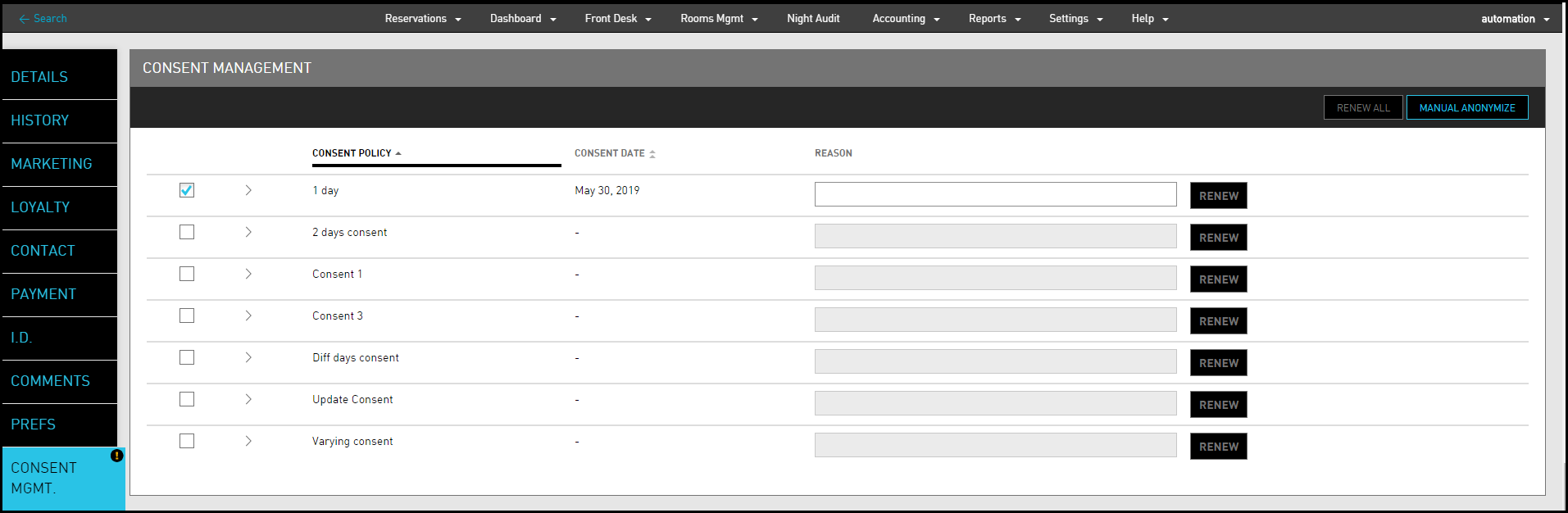
Click Save. The policy is now updated for the profile.
Select the policy to extend the consent policy and click Renew.
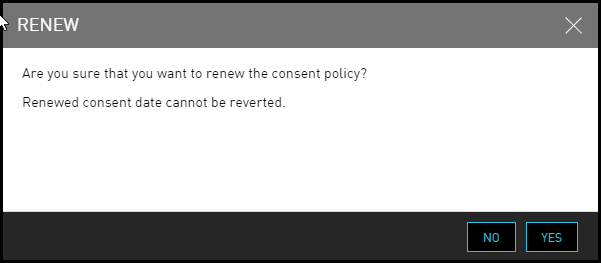
Click Yes on the Renew confirmation page. The renewed consent date cannot be reverted.
Click Save to complete renewal of the consent policy.
If the user wants to renew all the consent policies available for a guest profile, click on Renew All.
Consent policies can be updated while booking a reservation, creating a guest profile, checking in a guest, or being directly edited or updated.